fn key shortcuts on Mac that almost nobody knows
The fn key sits at the bottom-left of your Mac keyboard. Most people use it for F1, F2, or screen brightness and volume — and that’s about it.
What most people don’t realize is that macOS maps the fn key to several system-level shortcuts. You can call up the Dock, launch Mission Control, open a Quick Note — all of it. It just isn’t well documented, so most of these shortcuts go unnoticed.
fn + A — Bring up the Dock

Calls the Dock instantly. Press it again to hide.
This is especially useful for people running with Dock auto-hide on. Pushing your cursor to the bottom edge of the screen to summon the Dock often doesn’t work cleanly on a laptop trackpad. fn+A doesn’t care where your cursor is. Even in full-screen mode, when you just want to glance at a notification badge, one key gets you there.
Take it one step further: hide the Dock entirely with ⌥⌘D. Without the Dock taking up screen space, you never need to push the cursor to the bottom edge — when you actually need the Dock, fn+A brings it up. You get more screen real estate and faster access.
fn + Q — Quick Note
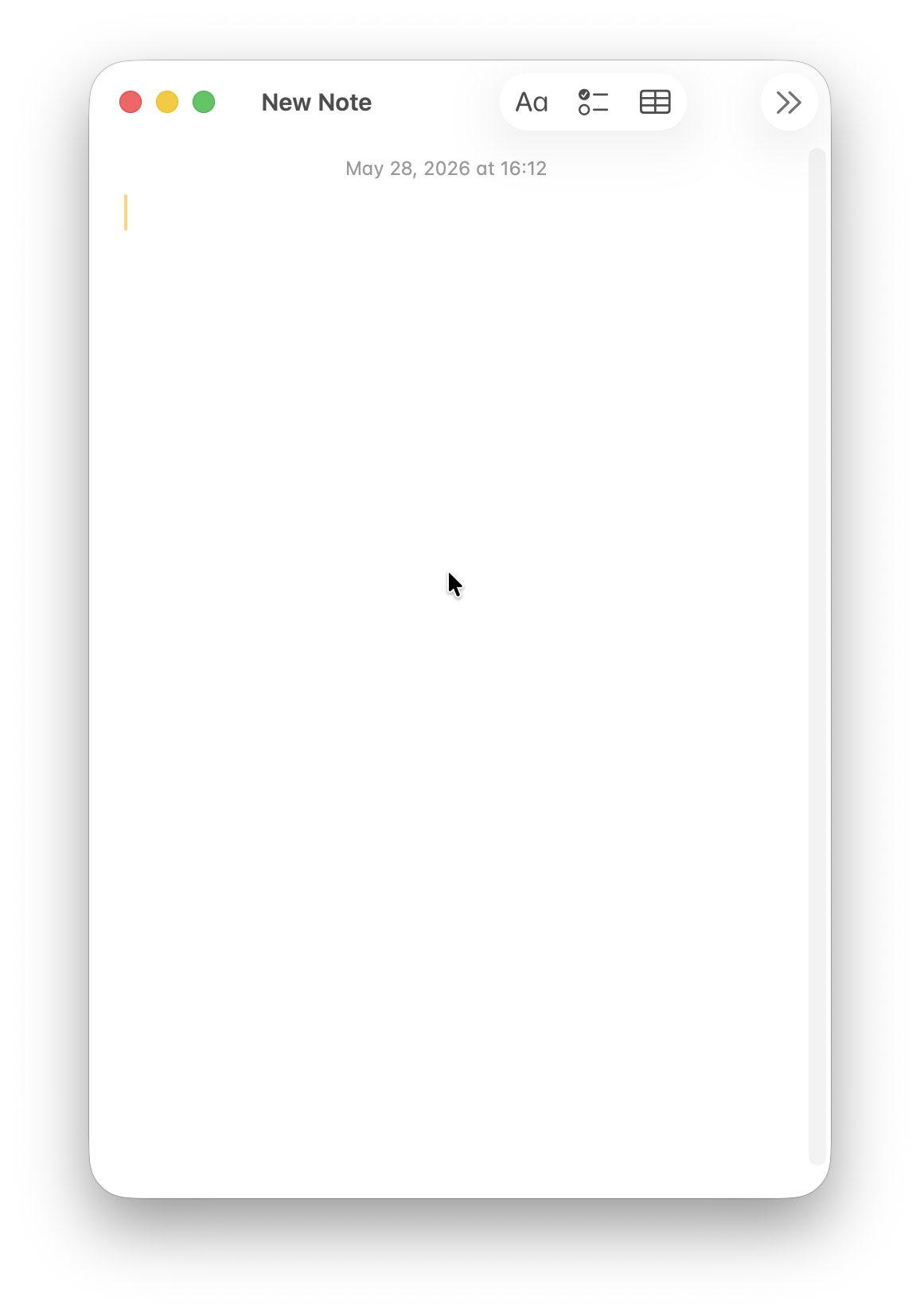
Quick Note is a macOS feature that pops up a small floating note pane over whatever app you’re in. Whatever you write gets saved to the Notes app automatically.
Pop it up during a meeting and you can take notes right over the Zoom window. Highlight text on a web page first and the source link gets saved alongside it. When you’re coding and need to jot a TODO, leaving the Quick Note floating over your IDE means your context doesn’t break.
fn + N — Notification Center
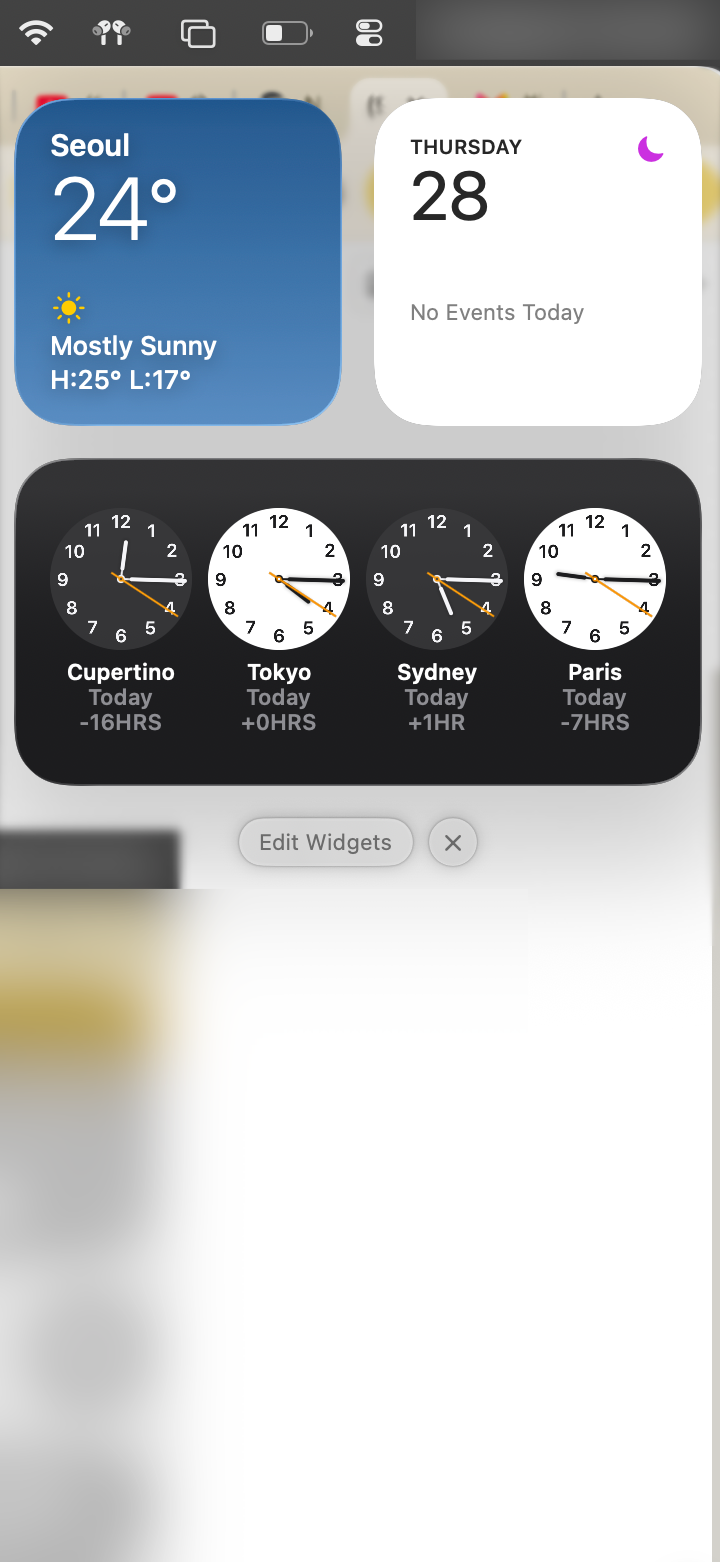
A keyboard shortcut to summon Notification Center. Instead of clicking the clock at the top right or doing the trackpad edge swipe — one keypress.
If you set up your widgets well, Notification Center essentially becomes a dashboard. Today’s schedule, the weather, mini notes — all at a glance. Clearing piled-up notifications is faster from the keyboard too.
fn + C — Control Center
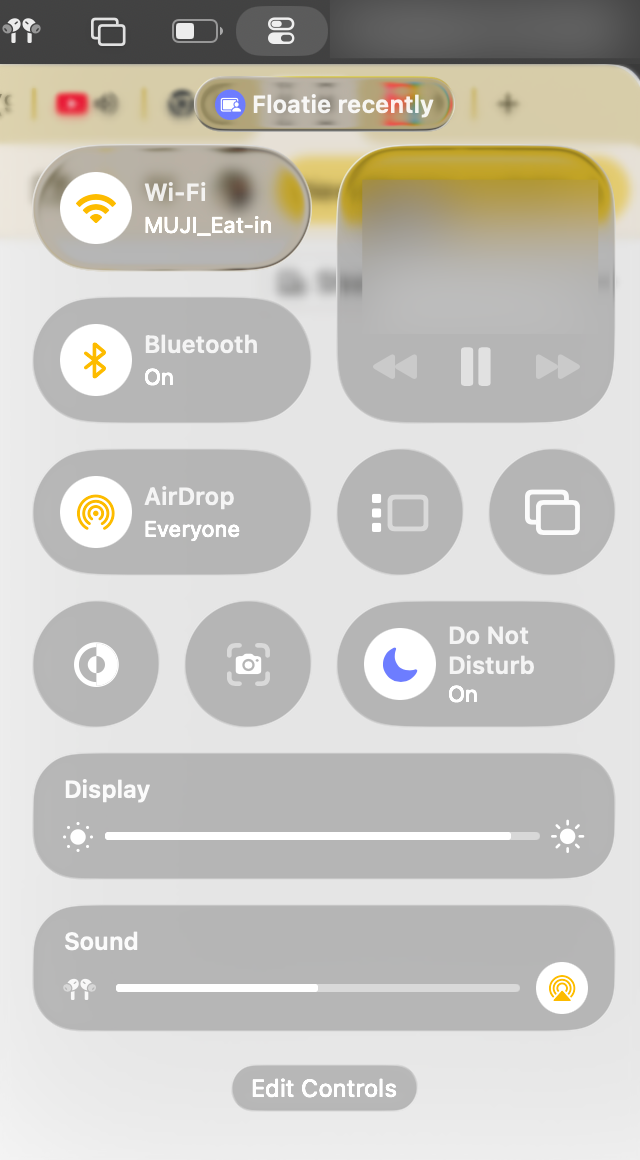
Control Center is where Wi-Fi, Bluetooth, sound, display mirroring, and other system toggles live. Open it from the keyboard instead of hunting through the menu bar.
Once you know this shortcut, you can yank half the icons out of your menu bar. Wi-Fi, Bluetooth, sound, display mirroring, AirDrop, screen mirroring — they’re all already inside fn+C, so there’s no reason to keep them duplicated in the menu bar. Go to System Settings → Control Center and turn off “Show in Menu Bar” for the ones you don’t need.

Keep only what you actually look at often (time, battery, input source) and clear out the rest. Your top bar suddenly feels clean, and when you need anything else, fn+C is one key away.
fn + E — Emoji & special characters
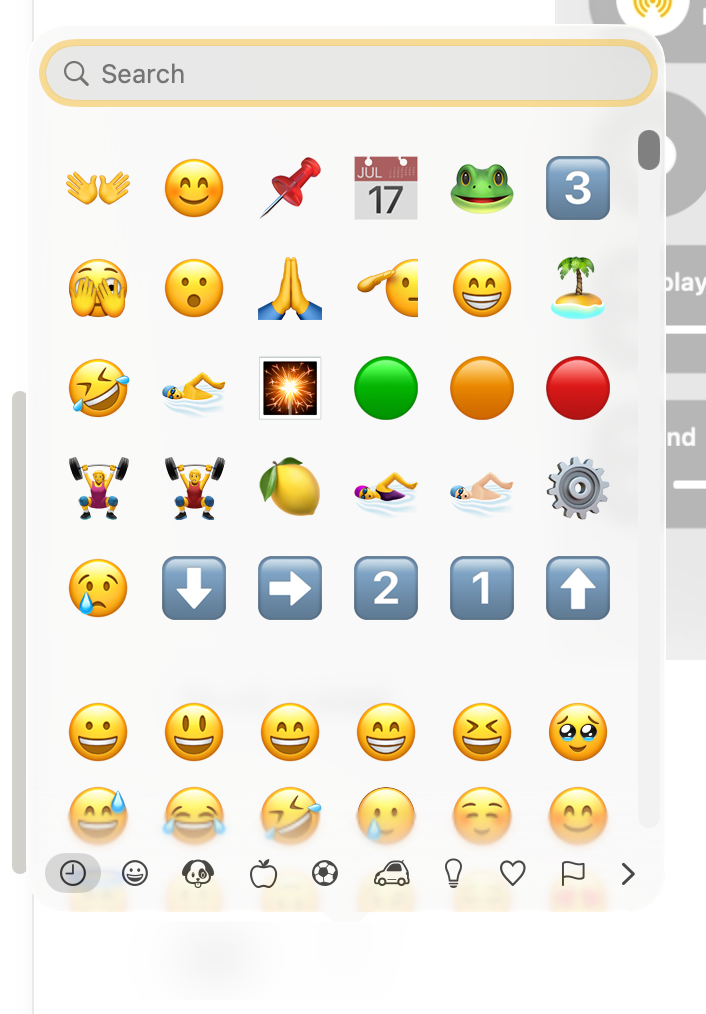
This is actually the default behavior of the fn key on macOS. In System Settings, “Press 🌐 key to: Show Emoji & Symbols” is enabled by default.
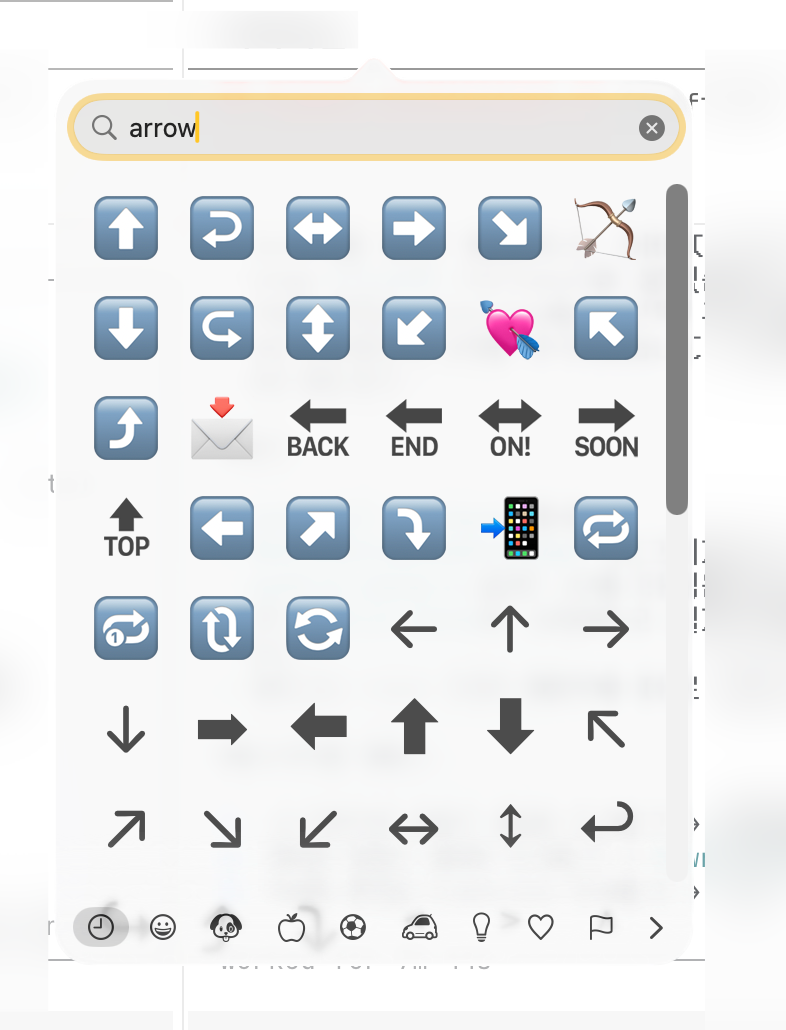
What most people miss is that this isn’t just an emoji picker. Search arrow and you’ll get every kind of arrow. Type pi and π shows up. Type approx and you get ≈. You don’t have to memorize special characters anymore.
fn + F — Toggle full screen
Nearly every macOS app supports full-screen mode, but the way you enter it varies wildly. Green button top-left, ^⌘F shortcut, menu bar… no consistency.
fn + F toggles full screen the same way across every app. Useful when you want to focus on writing or coding, or when you want to lock a window in full-screen on an external display and work on something else on the main screen.
fn + F3 — Mission Control
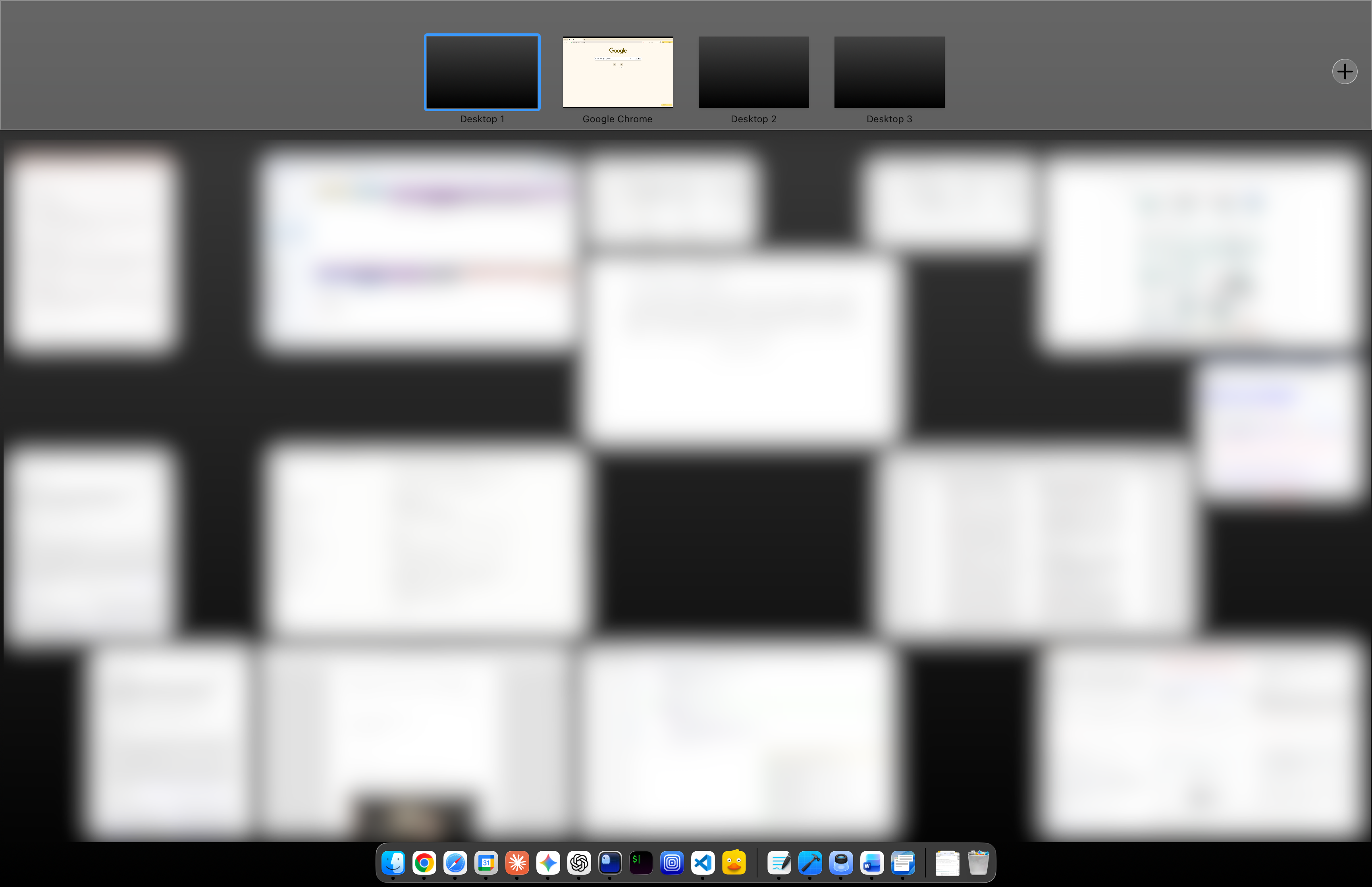
A macOS feature that spreads every open window and desktop across the screen at once. Same as the three or four-finger swipe up on the trackpad.
Most useful for people running dozens of windows at a time. You see what’s where at a glance and click straight to it. Jumping between Spaces is also fastest from here.
If “Use F1, F2, etc. keys as standard function keys” is on, it’s
fn + F3. If off, justF3on its own.
fn + H — Show desktop
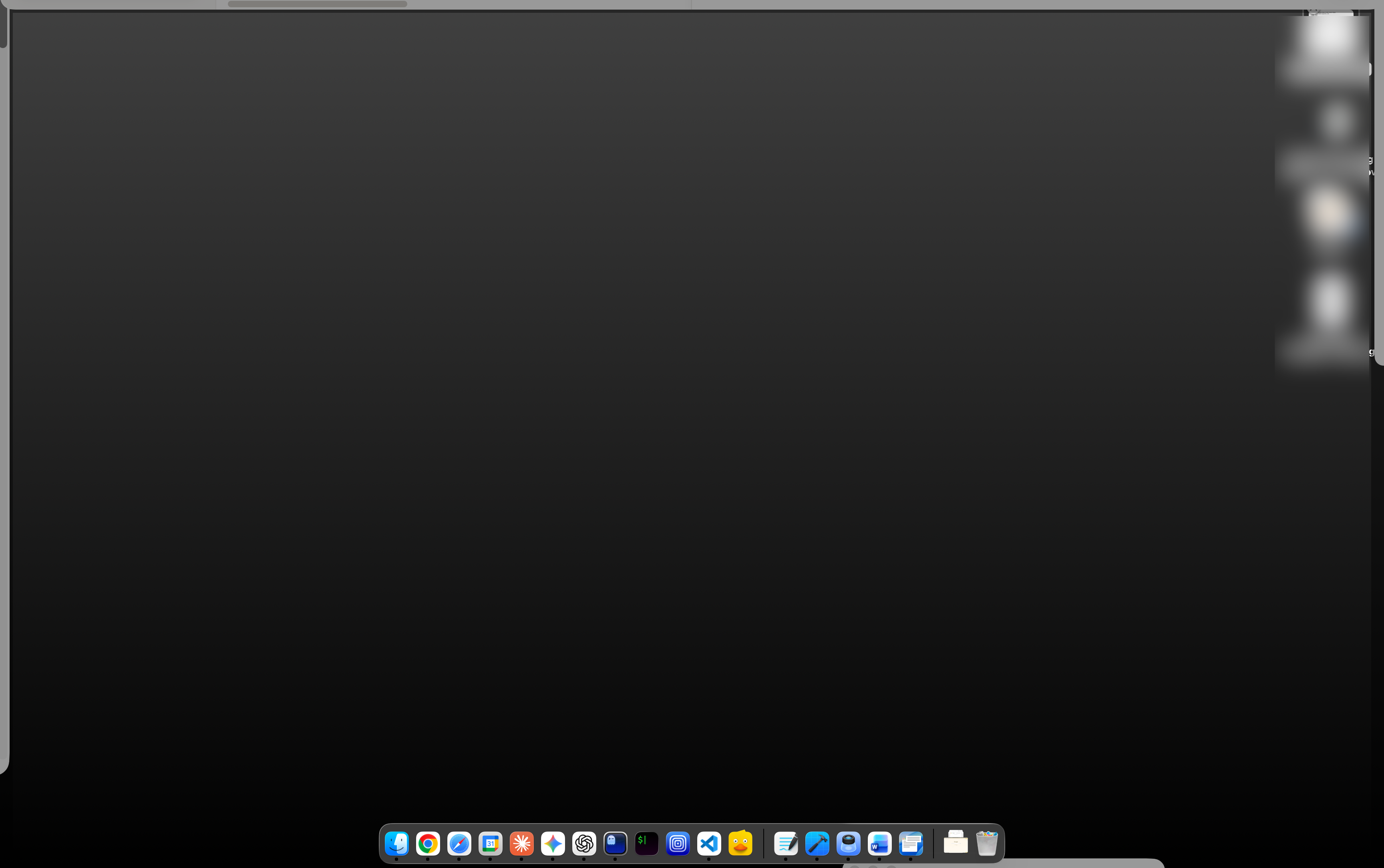
Pushes every open window off-screen and exposes the desktop. Press it again to bring everything back.
You’ll use this for dragging a download to another app, or cleaning up screenshots piling up on the desktop.
fn + ↑↓←→ — Page Up/Down, Home/End
This is the shortcut closest to the fn key’s original purpose. Laptop keyboards don’t have dedicated Page Up/Down, Home, and End keys, so the fn + arrow combos stand in for them.
fn + ↑/↓— scroll one page up/downfn + ←/→— move cursor to start/end of line
Way faster than trackpad scrolling when you’re skimming a long PDF or a code file. While editing text, fn + ← to jump to the start of a line is one you’ll reach for often.
The fn key sits in the most reachable position on your keyboard, and most people never use it for anything beyond emoji. Learning even just the shortcuts above will noticeably change how fast you can move around macOS.
Want the longer story behind why someone built an entire app around this key? Why I built fns: I’m addicted to shortcuts.